<div class="main_card" >
<span class="main_card_heading">Quick Intro:</span>
<p class="paragraph">
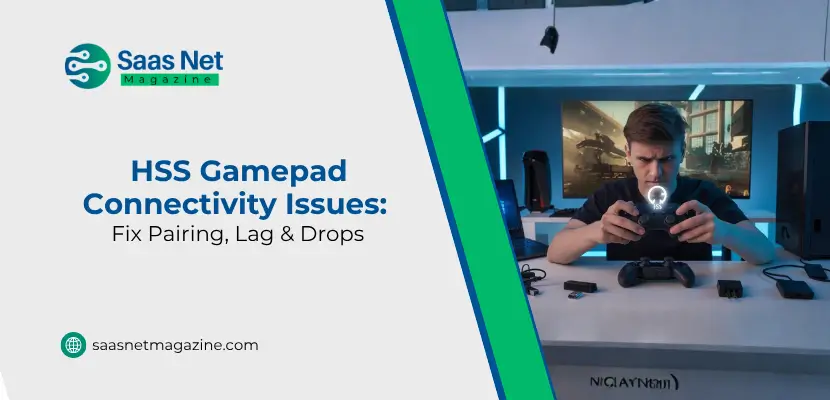
You're ten minutes into a ranked match. Your thumbs know exactly what they're doing. Then the controller skips. A half-second freeze, a button that didn't register and then the whole thing drops entirely. Your character stands there while the game continues without you.
If you own an HSSGamepad and that scenario sounds familiar, you're not alone. Connectivity problems with wireless gaming controllers are genuinely common and the HSSGamepad for all its strengths isn't immune to the same issues that affect nearly every Bluetooth gamepad on the market. The good news is that the vast majority of these problems are fixable. Most of them don't require any technical skill, replacement parts, or a new controller.
</p></div>
<p class="paragraph"> This guide covers every major connectivity problem the HSSGamepad runs into, what actually causes each one and how to fix it from the simplest restart-and-retry situations all the way to driver conflicts on Windows and Bluetooth version mismatches on Android.</p>
<h2 class="heading2">What Kind of Controller Is the HSSGamepad?</h2>
<p class="paragraph">Before jumping into fixes, a quick note on what we're working with. The HSSGamepad is a wireless gaming controller designed to work across Android smartphones, Windows PCs and various other platforms. It connects primarily via Bluetooth, though many models also support wired USB connection as a fallback.
It's an affordable, capable gamepad that appeals to mobile gamers, emulator users and anyone who wants physical controls without spending $60 on a first-party console controller. The tradeoff for that price point is that the wireless implementation can be sensitive more dependent on environment, battery charge and device configuration than a premium controller would be.
Understanding that context matters because it shapes how you troubleshoot. Most HSSGamepad connectivity issues are environmental or software-related, not hardware failures.</p>
<h2 class="heading2">Common HSSGamepad Connectivity Problems</h2>
<p class="paragraph">People describe the issues in a fairly consistent set of patterns:</p>
<ul>
<li>The controller doesn't appear in the Bluetooth device list at all</li>
<li>It pairs once, then never reconnects automatically after that</li>
<li>It connects but drops out after a few seconds or mid-game</li>
<li>Buttons respond, but with noticeable input lag</li>
<li>It connects on one device but not another</li>
<li>The USB connection isn't recognized by Windows</li>
<li>The controller shows as connected but inputs aren't registering in-game</li>
</ul>
<p class="paragraph">Each of these has a different root cause, which is why fixing one person's problem doesn't always fix another's. The sections below break this down cause by cause.</p>
<h2 class="heading2">Main Causes Behind HSSGamepad Connection Problems</h2>
<h3 class="heading3">Low or Unstable Battery</h3>
<p class="paragraph">This is the most common cause and the most frequently overlooked one. A partially depleted battery doesn't just mean the controller will eventually die it means the Bluetooth radio inside it is broadcasting a weaker signal right now. That weak signal leads to handshake failures during pairing, mid-session dropouts and sluggish response times that feel like lag but are actually signal instability.</p>
<p class="paragraph">Charge the controller fully before troubleshooting anything else. It sounds too simple to be the answer, but it frequently is.</p>
<h3 class="heading3">Bluetooth Interference</h3>
<p class="paragraph">Wireless controllers operate in the 2.4 GHz frequency band the same spectrum used by Wi-Fi routers, microwave ovens, smartwatches, wireless earbuds and most other wireless devices in a typical living space. When too many devices are competing in that band, the signal can degrade significantly.</p>
<p class="paragraph">If your gaming setup is in a room with a router, multiple Bluetooth devices active simultaneously, or even a microwave in close proximity, that interference can cause exactly the kind of random disconnects and input lag that people typically attribute to a faulty controller.</p>
<h3 class="heading3">Bluetooth Version Mismatch</h3>
<p class="paragraph">Some HSSGamepad models use Bluetooth 4.0 or earlier. Modern smartphones and laptops increasingly ship with Bluetooth 5.0 or higher. While these versions are backward compatible in theory, in practice the handshake between older and newer implementations can be inconsistent leading to pairing failures, brief dropouts, or reduced range.</p>
<h3 class="heading3">Corrupted or Conflicting Pairing Data</h3>
<p class="paragraph">Bluetooth devices store pairing information. If your HSSGamepad has been paired with multiple devices your phone, a friend's tablet, your PC it may try to reconnect to a previously paired device automatically instead of the one you're currently trying to use. Or the stored pairing data may simply have become corrupted, preventing a clean connection.</p>
<p class="paragraph">Deleting old pairings and starting fresh fixes this more often than people expect.</p>
<h3 class="heading3">Outdated Firmware or Drivers</h3>
<p class="paragraph">On Windows specifically, driver issues are a significant cause of USB connection failures and input recognition problems. Research consistently shows that a large portion of PC peripheral issues trace back to driver mismatches the OS using a generic HID driver when a more specific one is needed, or an outdated driver conflicting with a newer OS update.</p>
<p class="paragraph">On the controller side, firmware updates (where available) can resolve pairing logic bugs that developed after manufacturing.</p>
<h3 class="heading3">Device Mode Selection</h3>
<p class="paragraph">Many HSSGamepad models have multiple input modes one optimized for Android, one for PC/console. If the controller is set to the wrong mode for the device you're connecting to, it may appear to pair successfully but fail to register inputs, or it may not connect at all. This is especially common when switching between platforms.</p>
<h3 class="heading3">Physical Obstructions and Distance</h3>
<p class="paragraph">Bluetooth range is typically rated at 10 meters under ideal conditions. Real-world walls, furniture and other obstacles reduce that significantly. Being more than a few meters from your device, or having physical barriers between the controller and the receiver, can weaken the connection enough to cause problems.</p>
<h2 class="heading2">Step-by-Step Fixes for HSSGamepad Connectivity Issues</h2> <h3 class="heading3">Fix 1: The Full Restart Sequence</h3> <p class="paragraph">Before anything else, do this in order:</p> <ul> <li>Turn off the HSSGamepad completely (hold the power button until the LED turns off).</li> <li>Turn off Bluetooth on your phone, PC, or console.</li> <li>Wait 30 seconds.</li> <li>Turn Bluetooth back on.</li> <li>Power on the controller and put it in pairing mode.</li> <li>Reconnect from the device's Bluetooth settings screen.</li> </ul> <p class="paragraph">This clears temporary glitches in both the controller and the host device's Bluetooth stack. It solves a surprising number of issues on its own.</p> <h3 class="heading3">Fix 2: Delete Old Pairings and Re-Pair Clean</h3> <p class="paragraph">On your device, go into Bluetooth settings and find the HSSGamepad in the list of paired or known devices. Select "Forget" or "Unpair" the exact wording varies by platform. Do the same on any other devices the controller has been connected to, if you can.</p> <p class="paragraph">Then put the HSSGamepad in pairing mode (usually a dedicated sync button or a button combination check your model's manual) and pair it fresh from the Bluetooth settings menu.</p> <p class="paragraph">Don't try to pair it from within a game. Always use the system-level Bluetooth settings to establish the initial connection.</p> <h3 class="heading3">Fix 3: Charge to Full, Then Test</h3> <p class="paragraph">Plug the controller in via USB and let it charge completely before retesting. If your connectivity problems disappear after a full charge, you've found the cause. Going forward, don't let the battery drop below 30% during long sessions.</p> <h3 class="heading3">Fix 4: Reduce Wireless Interference</h3> <p class="paragraph">Turn off Bluetooth on any nearby devices that don't need it other phones, tablets, headphones, smartwatches. Move your router to a different frequency band if it supports 5 GHz (most modern routers do). Position yourself closer to your PC or phone during gaming, ideally within 2-3 meters without walls in between.</p> <ul> <li>If the problem consistently happens in one location but not another, interference is almost certainly the cause.</li> </ul> <h3 class="heading3">Fix 5: Check and Switch Controller Mode</h3> <p class="paragraph">Hold the appropriate button combination to cycle through the controller's input modes. On most HSSGamepad models, holding the Home button and a face button (X or B depending on the model) switches between Android mode, PC mode and iOS mode. The LED color or blink pattern usually indicates which mode is active.</p> <p class="paragraph">If you're connecting to Android, make sure the controller is in Android mode. If you're connecting to Windows, switch to PC mode. This solves the "connected but buttons don't work" problem more often than any other single fix.</p>
<h2 class="heading2">Fixing HSSGamepad Bluetooth Pairing on Specific Platforms</h2>
<h3 class="heading3">Android</h3>
<p class="paragraph">Android's Bluetooth implementation varies significantly by manufacturer. Samsung, Xiaomi and OnePlus devices all handle Bluetooth somewhat differently, which can affect how the HSSGamepad connects.</p>
<p class="paragraph">Start with the basics: turn Bluetooth off and on, confirm the controller is in Android mode and pair from the Connected Devices section in Settings.</p>
<p class="paragraph">If basic pairing fails, check that OTG is enabled in your Android settings (required for some Bluetooth scanning protocols on certain devices). Clear the Bluetooth cache: go to Settings > Apps, show system apps, find the Bluetooth app and clear its cache. This often resolves persistent pairing failures without requiring a full reset.</p>
<p class="paragraph">For BGMI, PUBG Mobile, or other games that require controller configuration, test the connection in a gamepad tester app like "Gamepad Tester" or "ShootingPlus V3" before testing in-game. This confirms whether the controller is actually sending inputs, which helps distinguish a connection problem from a game-level configuration problem.</p>
<p class="paragraph">On Samsung and Xiaomi devices specifically, aggressive battery optimization can interfere with Bluetooth. Go to battery settings and set the Bluetooth service to "unrestricted" or disable optimization for it.</p>
<h3 class="heading3">Windows PC</h3>
<p class="paragraph">Windows tends to connect fine but can silently do unhelpful things in the background.</p>
<p class="paragraph">Run Windows' built-in Bluetooth troubleshooter first: Settings > System > Troubleshoot > Other troubleshooters > Bluetooth. Let it run and apply any suggested fixes.</p>
<p class="paragraph">If that doesn't help, update your Bluetooth drivers. Open Device Manager, expand the Bluetooth section, right-click your Bluetooth adapter and select "Update driver." Alternatively, visit your laptop or motherboard manufacturer's website and download the latest Bluetooth driver directly.</p>
<p class="paragraph">For USB connection issues specifically, try a different USB port. Prefer a USB 2.0 port over USB 3.0 some controllers have compatibility issues with USB 3.0's power delivery behavior. If Windows doesn't recognize the controller at all via USB, install or update the controller's driver from the manufacturer's support page.</p>
<p class="paragraph">If the controller works correctly via USB but not via Bluetooth, the issue is specific to your PC's Bluetooth adapter rather than the controller itself.</p>
<h3 class="heading3">Console (PS4/PS5/Xbox)</h3>
<p class="paragraph">Third-party controllers often require a specific button combination to enter console pairing mode rather than the generic Bluetooth pairing mode. Consult your HSSGamepad's documentation for the exact sequence.</p>
<p class="paragraph">On PS4/PS5, use the official sync button on the console while the controller is in the appropriate pairing mode. On Xbox, note that Xbox's proprietary wireless protocol may not be supported if your HSSGamepad uses standard Bluetooth rather than Xbox's protocol, it may only connect to Xbox via USB.</p>
<h2 class="heading2">How to Fix Input Lag and Mid-Session Disconnects</h2>
<p class="paragraph">Input lag and disconnects during active gameplay usually trace back to one of three things: weak battery, interference, or power-saving settings kicking in.</p>
<h3 class="heading3">For lag specifically:</h3>
<p class="paragraph">Switch to USB/wired mode if your controller supports it. Wired connections eliminate Bluetooth latency entirely, which is the single most effective fix for input lag in competitive gaming. If you must play wirelessly, ensure the controller is fully charged and positioned close to the device.</p>
<p class="paragraph">Close background apps on your phone or PC that use Bluetooth wireless earbuds, fitness trackers and file transfer apps can all compete for bandwidth.</p>
<h3 class="heading3">For disconnects during gameplay:</h3>
<p class="paragraph">Check your device's power-saving settings. Both Android and Windows have features that throttle or suspend Bluetooth connections to save battery. On Android, disable battery optimization for the Bluetooth service. On Windows, open Device Manager, find your Bluetooth adapter under Device Properties > Power Management and uncheck "Allow the computer to turn off this device to save power."</p>
<p class="paragraph">If the controller disconnects on a set schedule say, every 10 minutes it's likely an auto-sleep timer activating. Keep a button input happening periodically during cutscenes, or check if the controller has an auto-sleep setting that can be adjusted.</p>
<div class="card_bottom">
<h3 class="heading3">Conclusion</h3>
<p class="paragraph">Controller problems feel personal in a way that other tech issues don't. You're in the middle of something, things are going well and then the hardware fails you at exactly the wrong moment. The HSSGamepad is a solid controller at its price point and when it's working, it's easy to forget it's there which is exactly how a good controller should feel.
The connectivity issues it runs into are real, but they're almost always solvable. Work through the steps in this guide systematically rather than randomly trying things and you'll isolate the problem faster. Start with the basics charge, re-pair, check the mode before moving to driver updates and interference analysis. Nine times out of ten, the fix is closer to the beginning of that list than the end.
</p>
</div>
<h2 class="heading2">FAQs</h2>
<div class="faq-box">
<!-- FAQ 1 -->
<input type="checkbox" id="faq1">
<label class="faq-question" for="faq1">
Why is my HSS Gamepad not connecting?
</label>
<div class="faq-answer">
This could be due to Bluetooth interference, outdated software, or incorrect pairing mode. Re-pairing the device and restarting both devices usually helps.
</div>
<!-- FAQ 2 -->
<input type="checkbox" id="faq2">
<label class="faq-question" for="faq2">
How do I fix input lag on my gamepad?
</label>
<div class="faq-answer">
Reduce wireless interference, update drivers, and ensure your controller is fully charged. Switching to a wired connection can also eliminate lag.
</div>
<!-- FAQ 3 -->
<input type="checkbox" id="faq3">
<label class="faq-question" for="faq3">
Can I use HSSGamepad with multiple devices?
</label>
<div class="faq-answer">
Yes, most HSS Gamepads support multiple devices. However, you may need to re-pair the controller each time you switch devices.
</div>
<!-- FAQ 4 -->
<input type="checkbox" id="faq4">
<label class="faq-question" for="faq4">
What is the best connection method for gaming?
</label>
<div class="faq-answer">
A wired USB connection offers the most stable performance, while Bluetooth provides convenience for wireless gaming.
</div>
</div>
<style>
.main_card{
margin: 20px 0px; padding: 20px; background: #e3f2fd; border-left: 4px solid #d31318; border-radius: 4px; color: #333333; font-family: -apple-system, BlinkMacSystemFont, 'Segoe UI', Roboto, 'Helvetica Neue', Arial, sans-serif; font-size: medium;
}
.main_card_heading{
margin: 0px; padding: 0px; font-weight: 600; color: #005190;
}
.heading2{
margin-top: 7px; margin-bottom: 20px; padding: 0px 0px 0px 15px; font-size: 1.8em; color: #005190; border-left: 4px solid #00b96f; font-family: -apple-system, BlinkMacSystemFont, 'Segoe UI', Roboto, 'Helvetica Neue', Arial, sans-serif; border-radius:4px;
}
.heading3{
margin-top: 7px; margin-bottom: 20px; padding: 0px 0px 0px 1px; font-size: 1.6em; color: #00b96f;font-family: -apple-system, BlinkMacSystemFont, 'Segoe UI', Roboto, 'Helvetica Neue', Arial, sans-serif;
}
.paragraph{
padding: 0px; text-align: justify; color: black; font-family: -apple-system, BlinkMacSystemFont, 'Segoe UI', Roboto, 'Helvetica Neue', Arial, sans-serif; font-size: medium;
}
.anchor{
color:#d31318;
}
.card_bottom{
margin: 20px 0px 0px; padding: 20px; color: #333333; font-family: -apple-system, BlinkMacSystemFont, 'Segoe UI', Roboto, 'Helvetica Neue', Arial, sans-serif; font-size: medium; background: #e3f2fd; border-radius: 6px; border-left: 4px solid #d31318;
}
.btnbt{
margin: 20px 10px 10px 0px; padding: 12px 24px; display: inline-block; background: #27477d; color: white; border-radius: 4px; font-weight: 600;
}
.faq-box {
max-width: 100%;
margin: 10px 0;
font-family: Arial, sans-serif;
}
.faq-box input {
display: none;
}
/* Question */
.faq-question {
display: block;
background: linear-gradient(135deg, #005190, #00b96f);
color: #fff;
padding: 15px 18px;
cursor: pointer;
border-radius: 8px;
font-weight: bold;
position: relative;
}
/* + / - icon */
.faq-question::after {
content: "+";
position: absolute;
right: 18px;
font-size: 20px;
transition: 0.3s;
}
.faq-box input:checked + .faq-question::after {
content: "-";
}
/* Answer */
.faq-answer {
max-height: 0;
overflow: hidden;
background: #f9f9f9;
padding: 0 18px;
border-left: 4px solid #00b96f;
border-radius: 0 0 8px 8px;
transition: 0.3s ease;
color: #333;
}
/* Open state */
.faq-box input:checked ~ .faq-answer {
max-height: 200px;
padding: 15px 18px;
}
</style>



 By
By